
Last year I wrote about building an AWS cost analysis agent with Strands. It looked at my account and pointed out things to clean up. I made a few of the changes it suggested and my bill dropped by about $100 a month.
Since then I’ve done a lot more of this work, and I don’t usually use a custom agent for it anymore. I open Claude Code in a terminal, point it at the account, and ask it where the money is going. It’s very good at this. It can pull a month of Cost Explorer data, notice that NAT Gateway data processing is 30% of the bill, find which subnets are behind it, and explain why, all in about the time it takes me to find the right page in the Billing console.
The hard part isn’t the AI. It’s the permissions. You’re giving a model a shell and AWS credentials. This post covers how I set that up so Claude can see everything it needs to find savings, can’t change anything, and can’t read my data.
The rule: Claude finds, I fix
Here’s the split I use:
- Claude reads cost data, metrics and resource metadata, then gives me a list of findings with the exact CLI commands to fix each one.
- I read the list, decide what to do, and run the changes myself with my own credentials.
Claude never has write access, not even “just for snapshots” or “just for tags.” Cost work is all reading and reasoning. The changes are usually a few commands I want to look at before anything gets deleted anyway.
Mistake #1: ReadOnlyAccess isn’t read-only enough
My first version attached AWS’s managed ReadOnlyAccess policy to an IAM user. It seems like the obvious choice, and it’s the wrong one.
“Read-only” means the role can’t change anything. It doesn’t mean the role can’t see anything. ReadOnlyAccess lets you:
- Download any object in any S3 bucket (
s3:GetObject) - Scan or query any DynamoDB table
- Read every CloudWatch log event
- Read Lambda function configurations, which include environment variables (where plenty of people still keep API keys)
- Read SSM parameters, EC2 user data, CloudFormation templates and more
None of that helps with cost work. Claude doesn’t need to know what’s in a bucket to tell you it has no lifecycle policy and 4 TB in Standard storage. It needs the size, the storage class and the configuration. That’s metadata, not data.
So the starting point is AWS’s ViewOnlyAccess job-function policy instead. It covers the List* and Describe* calls across services without the data reads. Then you add the cost-specific permissions it lacks, plus an explicit deny on data reads as a backstop.
Mistake #2: long-lived access keys
The first version also made an IAM user and wrote its access keys to a .env file. Those keys never expire, and they sat in a project folder on my laptop. Not great.
Use a role instead. You assume it from your normal credentials and get temporary credentials that expire after an hour. If something leaks, it’s useless by lunch.
Step 1: Create the role
All the examples below use account 111122223333. Replace it with yours, and replace the user ARN with whatever identity you normally log in as.
trust.json only lets you assume the role:
{
  "Version": "2012-10-17",
  "Statement": [
    {
      "Effect": "Allow",
      "Principal": { "AWS": "arn:aws:iam::111122223333:root" },
      "Action": "sts:AssumeRole",
      "Condition": {
        "ArnEquals": { "aws:PrincipalArn": "arn:aws:iam::111122223333:user/aaron" }
      }
    }
  ]
}
cost-analysis.json adds the cost permissions and the denies:
{
  "Version": "2012-10-17",
  "Statement": [
    {
      "Sid": "CostAndPricing",
      "Effect": "Allow",
      "Action": [
        "ce:Get*", "ce:Describe*", "ce:List*",
        "pricing:*",
        "compute-optimizer:Get*",
        "cost-optimization-hub:List*", "cost-optimization-hub:Get*",
        "savingsplans:Describe*",
        "budgets:ViewBudget"
      ],
      "Resource": "*"
    },
    {
      "Sid": "Metrics",
      "Effect": "Allow",
      "Action": ["cloudwatch:GetMetric*", "cloudwatch:ListMetrics"],
      "Resource": "*"
    },
    {
      "Sid": "StorageMetadata",
      "Effect": "Allow",
      "Action": [
        "s3:GetBucketLocation",
        "s3:GetBucketTagging",
        "s3:GetLifecycleConfiguration",
        "s3:GetIntelligentTieringConfiguration",
        "tag:GetResources"
      ],
      "Resource": "*"
    },
    {
      "Sid": "DenyDataReads",
      "Effect": "Deny",
      "Action": [
        "s3:GetObject*",
        "dynamodb:GetItem", "dynamodb:BatchGetItem", "dynamodb:Query",
        "dynamodb:Scan", "dynamodb:PartiQLSelect",
        "secretsmanager:GetSecretValue", "secretsmanager:BatchGetSecretValue",
        "ssm:GetParameter*",
        "kms:Decrypt",
        "logs:GetLogEvents", "logs:FilterLogEvents", "logs:StartQuery",
        "logs:GetQueryResults", "logs:StartLiveTail", "logs:Unmask",
        "lambda:GetFunction", "lambda:GetFunctionConfiguration",
        "ecs:DescribeTaskDefinition",
        "ec2:DescribeInstanceAttribute", "ec2:GetConsoleOutput", "ec2:GetPasswordData",
        "cloudformation:GetTemplate",
        "sqs:ReceiveMessage",
        "kinesis:GetRecords",
        "athena:GetQueryResults"
      ],
      "Resource": "*"
    }
  ]
}
An explicit Deny always beats an Allow in IAM. Even if AWS adds something to ViewOnlyAccess later, or you attach another policy by mistake, those reads stay blocked.
Now create the role (with your admin credentials, not Claude’s):
aws iam create-role \
  --role-name ClaudeReadOnly \
  --assume-role-policy-document file://trust.json \
  --max-session-duration 3600

aws iam attach-role-policy \
  --role-name ClaudeReadOnly \
  --policy-arn arn:aws:iam::aws:policy/job-function/ViewOnlyAccess

aws iam put-role-policy \
  --role-name ClaudeReadOnly \
  --policy-name ClaudeCostAnalysis \
  --policy-document file://cost-analysis.json
If you use IAM Identity Center (SSO), do the same thing as a permission set: attach ViewOnlyAccess as the managed policy and paste cost-analysis.json in as the inline policy.
Step 2: Turn on the free recommendation engines
Two AWS services do a lot of the analysis for you. Both are free, and both need a one-time opt-in:
- Compute Optimizer produces rightsizing recommendations for EC2, EBS, Lambda, ECS on Fargate and RDS from your actual CloudWatch metrics.
- Cost Optimization Hub gathers savings opportunities (rightsizing, idle resources, Savings Plans, Graviton moves) in one place with dollar estimates.
Turn them on in the console, or ask Claude to tell you how. Give them a day or so to gather data. With them on, Claude can start from AWS’s own numbers instead of working everything out from raw metrics.
Step 3: Add a CLI profile
Add this to ~/.aws/config:
[profile claude-readonly]
role_arn = arn:aws:iam::111122223333:role/ClaudeReadOnly
source_profile = default
role_session_name = claude-code
duration_seconds = 3600
region = us-east-1
The role_session_name matters more than it looks. Every API call Claude makes shows up in CloudTrail tagged claude-code, so you can always go back and see exactly what it looked at.
Step 4: Prove it’s actually read-only
Don’t take my word for it, or yours. Test it.
Check that the profile works and Claude can see costs:
aws sts get-caller-identity --profile claude-readonly

aws ce get-cost-and-usage \
  --time-period Start=2026-10-01,End=2026-11-01 \
  --granularity MONTHLY --metrics UnblendedCost \
  --group-by Type=DIMENSION,Key=SERVICE \
  --profile claude-readonly
Check that it can’t change anything. --dry-run asks EC2 “would this be allowed?” without doing it:
aws ec2 stop-instances --instance-ids i-0123456789abcdef0 \
  --dry-run --profile claude-readonly
# An error occurred (UnauthorizedOperation) ...
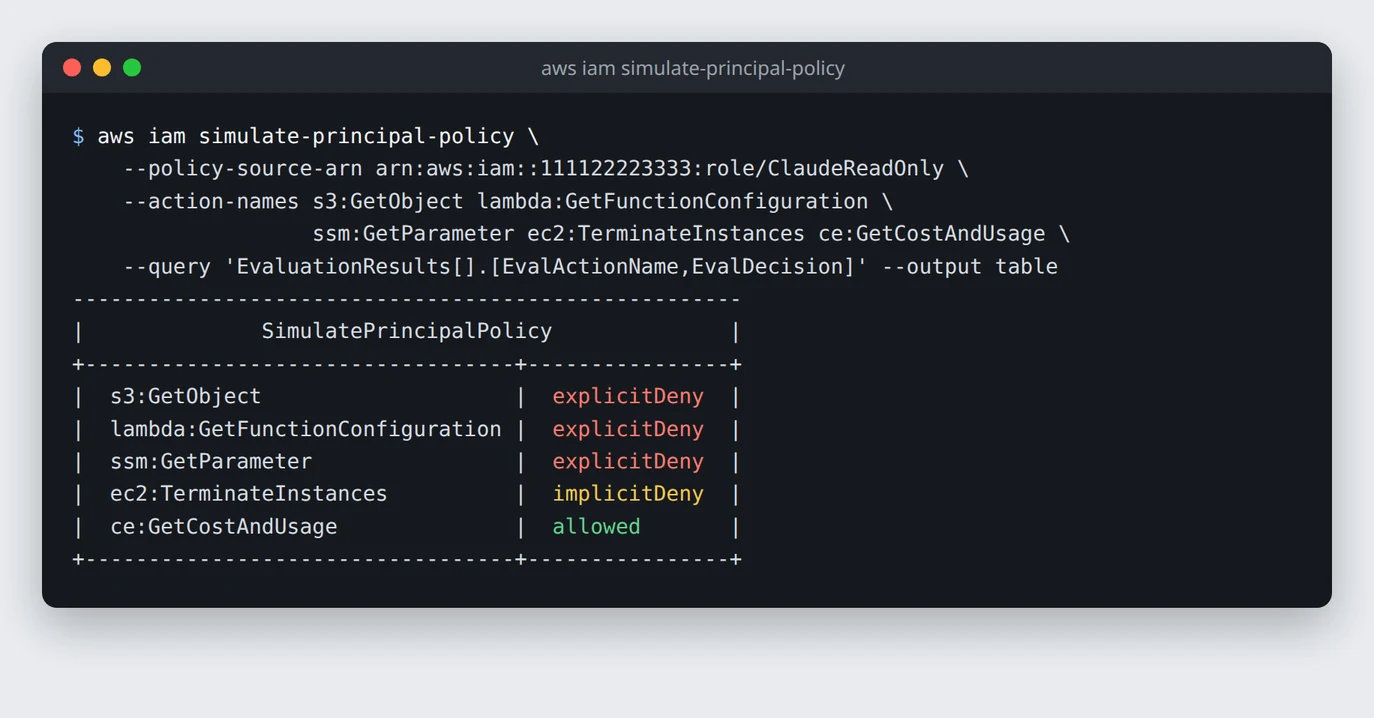
Then use the IAM policy simulator (with your admin profile) to check the denies:
aws iam simulate-principal-policy \
  --policy-source-arn arn:aws:iam::111122223333:role/ClaudeReadOnly \
  --action-names s3:GetObject lambda:GetFunctionConfiguration \
                 ssm:GetParameter ec2:TerminateInstances ce:GetCostAndUsage \
  --query 'EvaluationResults[].[EvalActionName,EvalDecision]' --output table
You want explicitDeny on the data reads, implicitDeny on TerminateInstances, and allowed on GetCostAndUsage. If anything else shows up, fix the policy before Claude gets near it.
Step 5: Set up Claude Code
I keep a separate folder for cost work, e.g. ~/aws-cost-review, with two files in it.
.claude/settings.json makes the read-only profile the default for every command Claude runs in this folder:
{
  "env": {
    "AWS_PROFILE": "claude-readonly"
  },
  "permissions": {
    "deny": [
      "Bash(aws configure:*)",
      "Read(~/.aws/credentials)"
    ]
  }
}
CLAUDE.md lays out the ground rules:
# AWS cost review

- You are working with read-only AWS access (profile: claude-readonly).
  Never pass a different --profile. Never ask me for other credentials.
- Your job is to find savings, not to make changes. For every finding, give:
  what it is, the resource ID, estimated monthly savings, the risk,
  and the exact command I would run to fix it.
- Cost Explorer API calls cost $0.01 each. Save results to ./data/
  as JSON and reuse them instead of calling again.
- Start with Cost Optimization Hub and Compute Optimizer recommendations,
  then confirm them against CloudWatch metrics before recommending anything.
- Check every enabled region, not just us-east-1.
To be honest about what this does: the settings file and CLAUDE.md are seatbelts, not the security boundary. The IAM role is the boundary. If your admin credentials are sitting on the same machine, a determined process could still find them. If you want to be strict, run Claude Code in a container or a separate OS user where the read-only profile is the only credential that exists. For my own accounts, the role plus the settings file is where I’m comfortable.
Step 6: Ask it to find money
Start Claude Code in that folder and give it something like:
Review this AWS account for cost savings. Break down the last 3 months of spend by service and flag anything that grew more than 20%. Then look for idle and oversized resources: unattached EBS volumes, old snapshots, unused Elastic IPs, idle load balancers, NAT Gateways with heavy data processing, oversized EC2 and RDS instances, and S3 buckets with no lifecycle policy. Rank the findings by monthly savings and give me the fix command for each one.
What you get back is a ranked list. Each item has the resource, why it costs what it does, what Claude would change, and the command to do it. I go down the list, check anything that looks risky, and run the changes myself.
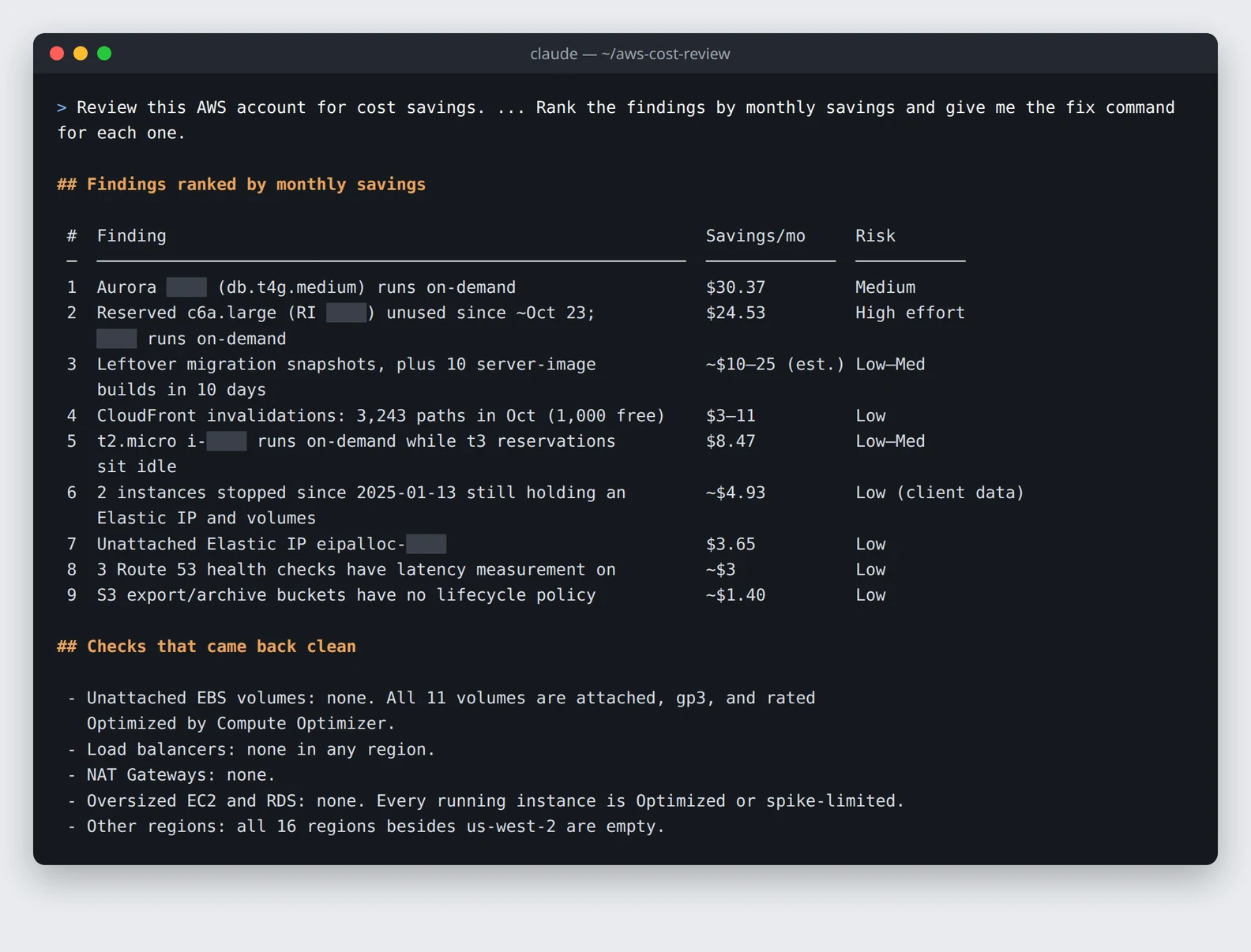
Things it reliably finds in almost every account I’ve pointed it at:
- EBS volumes and snapshots left behind after an instance was terminated
- gp2 volumes that should be gp3 (cheaper and faster, and the change happens online)
- NAT Gateway data processing that a VPC endpoint for S3 or DynamoDB would remove
- EC2 and RDS instances averaging single-digit CPU for months
- CloudWatch log groups set to never expire
- Old-generation instance types with a cheaper current-gen or Graviton equivalent
A couple of cost notes
Most of this is free. The two exceptions:
- Cost Explorer API: $0.01 per request. A thorough review might make a few dozen calls. That’s why the CLAUDE.md tells Claude to cache results.
- CloudWatch
GetMetricData: a small charge per thousand metrics requested. You’ll only notice it on a very large account.
Compared to what it usually finds, the bill for the review is a rounding error.
More than one account?
If you have an AWS Organization, you want this role in every member account. Then Claude assumes into each account from one place. The trust policy in each member account should trust your management or tooling account instead of a user in the same account.
I published the same role as a Terraform module, including an organization submodule that rolls it out to every account in your OUs with a CloudFormation StackSet: github.com/SpendSaw/terraform-aws-spendsaw-role. It’s the role my product, Spendsaw, uses to scan accounts, so it’s tested against real ones. The policy there is the full version of the trimmed-down one above. You can use the module without Spendsaw. Just point the trust policy at your own account.
Cleaning up
When you’re done, or if you ever want to cut Claude off, delete the role. That’s it.
aws iam delete-role-policy --role-name ClaudeReadOnly --policy-name ClaudeCostAnalysis
aws iam detach-role-policy --role-name ClaudeReadOnly \
  --policy-arn arn:aws:iam::aws:policy/job-function/ViewOnlyAccess
aws iam delete-role --role-name ClaudeReadOnly
Wrapping up
Pointing AI at your AWS bill is one of the highest-return things you can do with it right now. It’s tedious work that needs to look across a lot of services at once, and that’s exactly what these models are good at. You just have to set it up so a bad suggestion stays a suggestion.
To recap: use a role, not access keys. Use ViewOnlyAccess plus cost permissions, not ReadOnlyAccess. Explicitly deny data reads. Test it before you trust it. Have Claude hand you commands instead of running them.
If you set this up and want a second set of eyes on the policy, or you want to compare notes on what it found, reach out!